Charge de Travail
Détectez la Surcharge Avant le Burnout
Stop guessing who has bandwidth. Visualize team capacity in real-time, reassign tasks with drag-and-drop, and deliver without burning out your developers.
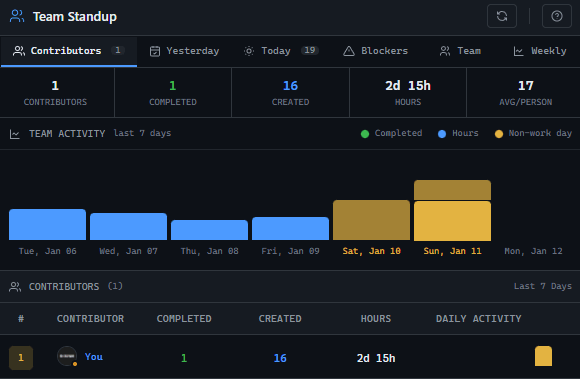
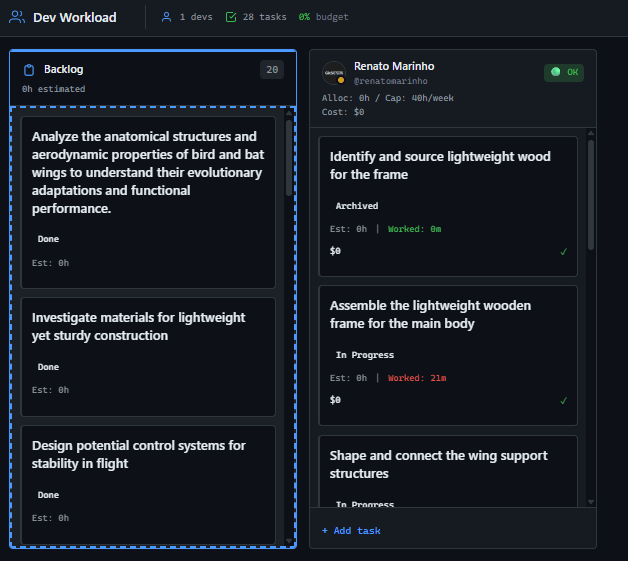
Every dev's load
at a glance
Backlog on the left, developers as columns. See who's overloaded (red), who's at capacity (yellow), and who has room (green). Visual management that actually works.
Configure capacity per developer
Set weekly hours per person. Account for vacation days automatically. See real capacity—not just theoretical availability.
Drag to balance
workload instantly
See someone overloaded? Drag their task to another developer. See unassigned work? Drag it to the right person. No forms, no friction.
Set rates per developer
Senior devs cost more than juniors. Override project default rates per developer. Add justification for audit trails. Cost accuracy matters.
Track budget against allocation
See allocated hours vs project budget. Know if you're on track or heading for overrun—before it's too late to adjust.
How Dev Workload Works
From chaos to balanced capacity
Configure
Set weekly capacity per developer. Mark vacation periods. Override hourly rates where needed.
Visualize
See everyone's workload on a Kanban board. Green means available. Red means overloaded. Yellow means at limit.
Balance
Drag tasks between developers to balance load. Watch capacity percentages update in real-time.
Who uses Dev Workload?
For Agency Owners
See utilization across projects without asking managers. Know when to hire before existing team burns out. Protect your margins with cost visibility.
Prevent burnout and budget overrunsFor Managers
Balance team workload without spreadsheets. Know who's overloaded before they complain. Reassign work with a single drag.
Balance in seconds, not meetingsFor Developers
Your manager can see you're overloaded. No need to ask for help—the data speaks. Fair distribution becomes visible.
Fair workload distributionFor Clients
While you don't access Workload directly, your project benefits: no developer burnout means better quality delivery.
Better delivery qualityDev Workload vs Alternatives
Resource management that prevents problems, not just reports them
| Capability | GitScrum | Jira | Monday | Float |
|---|---|---|---|---|
| Kanban workload view | Paid | |||
| Drag & drop reassignment | ||||
| Real-time capacity % | Tempo | Paid | ||
| Vacation period tracking | ||||
| Per-developer custom rates | Paid | |||
| Budget integration | Paid | Paid | ||
| Overload visual alerts | ||||
| Cost per developer | Tempo | Paid | Paid |
Comparison based on free tiers as of January 2026
Questions about Dev Workload
Everything you need to know
Who can access Dev Workload?
Only Agency Owners and Managers can access Dev Workload. Developers and Clients do not have access—this is a management tool for balancing team capacity.
How is capacity calculated?
Weekly capacity (default 40h) multiplied by weeks in selected period, minus vacation days (8h per day). If someone has 40h/week capacity and 5 vacation days in a 4-week period, their capacity is 120h, not 160h.
What do the status colors mean?
Green (OK): Under 100% capacity. Yellow (Warning): 100-120% capacity—approaching overload. Red (Critical): Over 120% capacity—immediate attention needed.
Can I set different hourly rates per developer?
Yes. Each developer can have a custom hourly rate that overrides the project default. You can add justification (e.g., 'Senior developer') for audit purposes.
What happens when I drag a task?
The task is reassigned immediately. Capacity percentages and costs update in real-time. The change is logged in task history.
Does vacation automatically reduce capacity?
Yes. When you set a vacation period for a developer, their available capacity for that period is automatically reduced. No manual math needed.
Start balancing workload
See team capacity before burnout happens. Get started.
No credit card required · Setup in 2 minutes