Auto-Assign Tasks
When They Move
Configure columns to automatically assign team members and labels when tasks enter. Clear previous assignments if needed. Set once, forget forever. Manual handoffs become automated workflows.
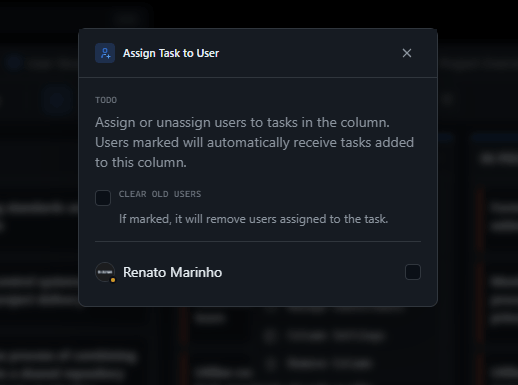
Right People
Automatically Assigned
Select which team members should be auto-assigned when tasks enter a column. QA column? Assign your QA team. Review column? Assign the reviewer. Tasks route to the right people without managers playing traffic cop.
Right Labels
Automatically Applied
Automatically tag tasks with labels when they enter columns. Bug triage column adds 'needs-review'. Done column adds 'completed'. Consistent categorization without manual tagging.
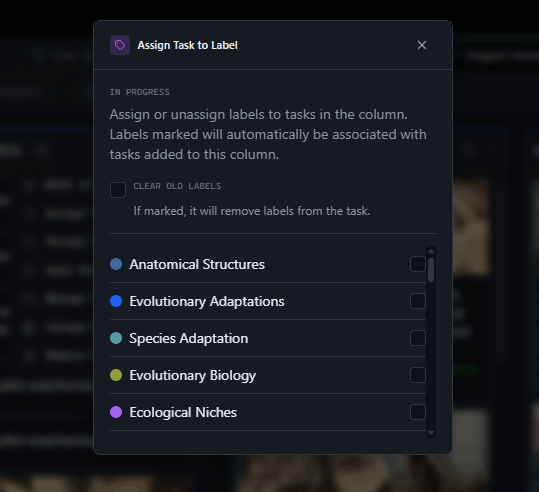
Clear Previous
On Column Entry
Enable 'Clear old users' or 'Clear old labels' per column. When a task moves to Code Review, clear the developer assignment and add the reviewer. Clean handoffs, clear ownership, zero confusion.
Design Your Flow
Automate Transitions
Each column can have its own assignment rules. Development column assigns developers. Testing assigns QA. Approval assigns managers. Your workflow becomes self-routing.
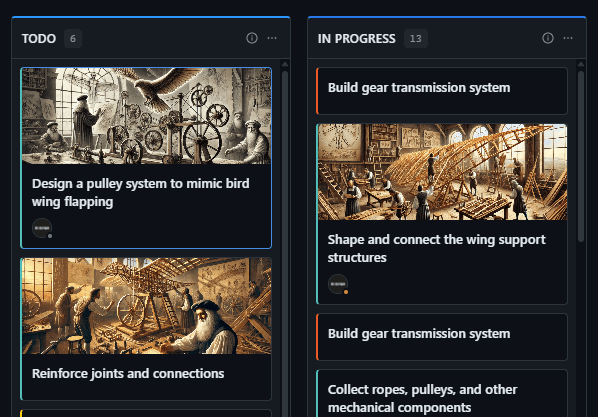
Move Task
See Assignments Update
Drag a task to a column. Assignments update instantly. No refresh needed. No delay. Other team members see the change in real-time via WebSocket. Seamless collaboration.
Managers Configure
Developers Execute
Only Managers and Agency Owners can configure auto-assignment rules. Developers and Clients can use boards and move tasks—triggering the automation—but can't change the rules.
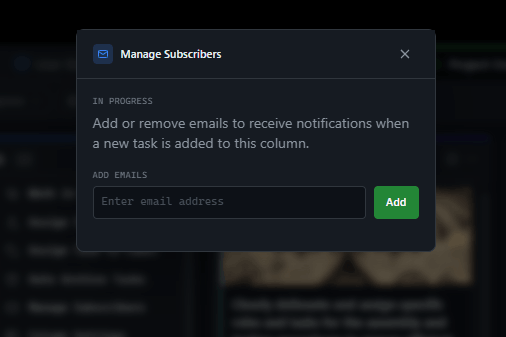
Set Up Auto-Assignment in Seconds
Simple configuration. Powerful automation.
Open Column Settings
Click the column dropdown menu. Select 'Assign Task to User' or 'Assign Task to Label'. Each column has independent configuration.
Select Assignees
Check team members or labels to auto-assign. Enable 'Clear old' if you want previous assignments removed. Changes save automatically.
Tasks Auto-Route
Drag any task into the column. Users and labels are assigned instantly. Your team sees updates in real-time. Done.
For Agency Owners
Standardize Client Workflows
Different projects, same chaos. Manual assignments mean inconsistent processes and dropped handoffs.
"We set up auto-assignment for each column type. Now every project follows the same handoff process automatically."
— Agency Operations DirectorFor Managers
Stop Being a Traffic Cop
You spend hours assigning tasks to the right people. Every handoff requires your intervention.
"I used to manually assign every task that moved to QA. Now it happens automatically. Reclaimed 5 hours a week."
— Engineering ManagerFor Developers
Know What's Yours Instantly
Tasks land in your column but you don't know they're yours until someone pings you.
"When I drag to Done, the reviewer is auto-assigned. No Slack message needed. No delay."
— Full-Stack DeveloperFor Clients
See Clear Ownership Always
You check progress but don't know who's responsible for each item.
"The board shows exactly who owns each task. I don't have to ask 'who's handling this?' anymore."
— Client Product OwnerHow GitScrum Auto-Assignment Compares
| Feature | GitScrum | Jira | Trello | Asana |
|---|---|---|---|---|
| Auto-assign users per column | Automation | Butler | Rules | |
| Auto-assign labels per column | ||||
| Clear old users on move | ||||
| Clear old labels on move | ||||
| Per-column independent rules | ||||
| Real-time sync | ||||
| Multiple assignees per column | ||||
| Works with drag & drop | ||||
| Manager-only configuration | ||||
| No external integrations needed |
Frequently Asked Questions
How does auto-assign work?
Configure users or labels for a column. When any task is dragged into that column, the configured users/labels are automatically added to the task. It happens instantly.
What does 'Clear old users' do?
When enabled, moving a task to the column removes all existing user assignments before adding the new ones. Useful for clean handoffs between stages.
Can I have different rules per column?
Yes. Each column has independent settings. Your Development column can assign developers, Testing assigns QA, Review assigns reviewers—each with their own rules.
Do assignments sync across the team?
Yes. Changes propagate via WebSocket in real-time. When you move a task, everyone viewing the board sees the assignment update instantly.
Who can configure auto-assignment?
Only Managers and Agency Owners. Developers and Clients can use boards and move tasks (triggering the automation), but cannot change the assignment rules.
Can I assign both users AND labels?
Yes. Each column can have separate user rules and label rules. They work independently—you can use one, both, or neither.
Does it work with WIP limits?
Yes. If a column has WIP limits and auto-assignment, the WIP check happens first. If the column is at capacity, the task won't move and auto-assignment won't trigger.
Can I disable auto-assignment later?
Yes. Uncheck users or labels in the column settings anytime. Tasks already assigned keep their assignments—changes only affect future moves.
Automate Task Routing
Not Meetings About It
Configure once. Tasks auto-route forever. Start now.